Electronics
.jpg?timestamp=1409509193205)
Diode- A diode allows electricity to flow in one direction only and blocks the flow in the opposite direction.
This is one of the important application in electronics and you should remember this.
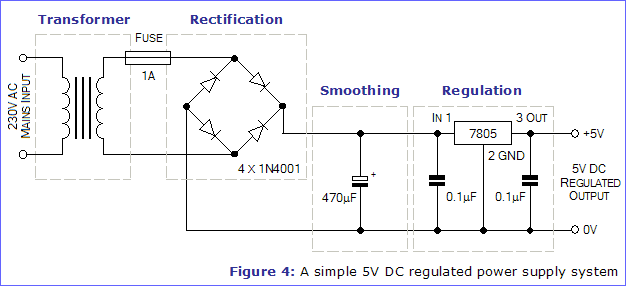
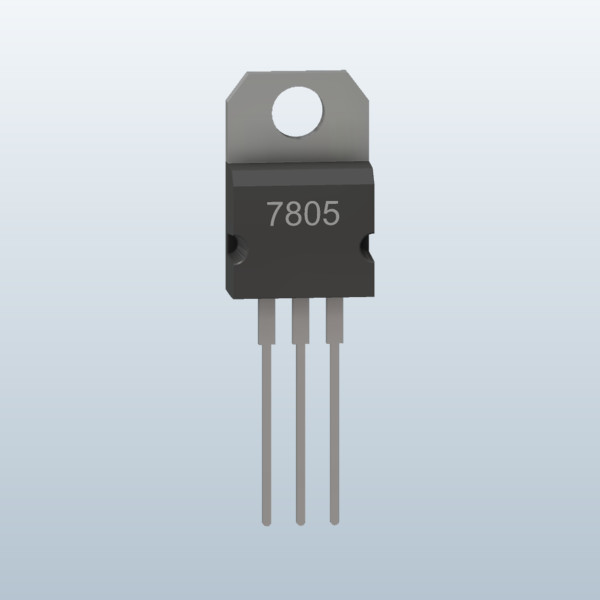
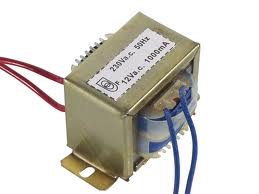
5v Power Supply using 1A Transformer and 7805
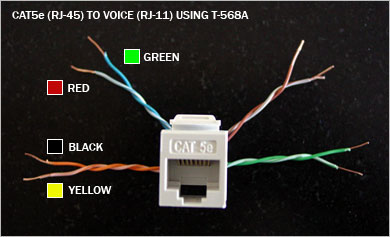
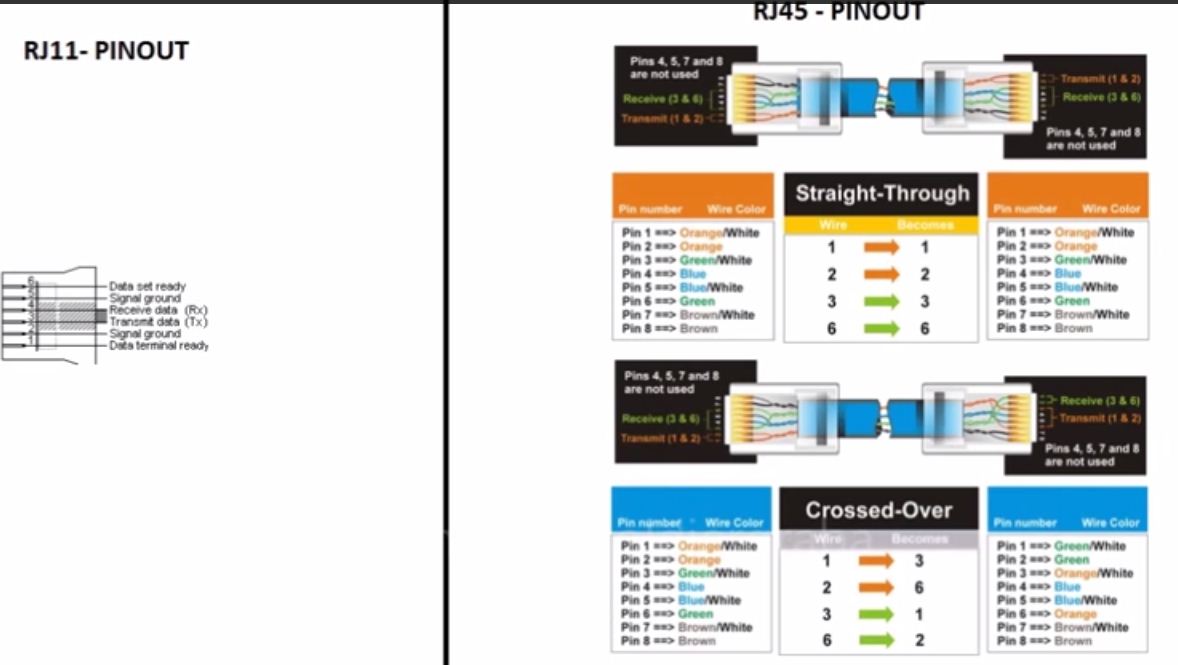
Convert RJ45 to RJ11
Programming
Event handler function that uses MessageBox.Show: VB.NET
MessageBox.Show("Dot Net Perls is awesome.")
Show a two-argument dialog box with this method. MessageBox.Show("Dot Net Perls is awesome.", _ "Important Message")
Use a three-argument dialog box with MessageBox.Show. ... Also store the result value in a variable slot.
Dim result1 As DialogResult = MessageBox.Show("Is Dot Net Perls awesome?", _ "Important Question", _ MessageBoxButtons.YesNo)
Use four parameters with the method. ... Use the YesNoCancel enumerated constant and the Question icon.
Dim result2 As DialogResult = MessageBox.Show("Is Dot Net Perls awesome?", _ "Important Query", _ MessageBoxButtons.YesNoCancel, _ MessageBoxIcon.Question)
Use five arguments on the method. ... This asks a question and you can test the result using the variable.
Dim result3 As DialogResult = MessageBox.Show("Is Visual Basic awesome?", _ "The Question", _ MessageBoxButtons.YesNoCancel, _ MessageBoxIcon.Question, _ MessageBoxDefaultButton.Button2)
Use if-statement with dialog result.
If result1 = DialogResult.Yes And _ result2 = DialogResult.Yes And _ result3 = DialogResult.No Then MessageBox.Show("You answered yes, yes and no.") ' Another dialog. End If
Use MessageBox.Show overload that has seven arguments.
MessageBox.Show("Dot Net Perls is the best.", _ "Critical Warning", _ MessageBoxButtons.OKCancel, _ MessageBoxIcon.Warning, _ MessageBoxDefaultButton.Button1, _ MessageBoxOptions.RightAlign, _ True)
Show a dialog box with a single button. MessageBox.Show("Dot Net Perls is super.", _ "Important Note", _ MessageBoxButtons.OK, _ MessageBoxIcon.Exclamation, _ MessageBoxDefaultButton.Button1)
Managing Database Connections
Standard Security
Provider=Microsoft.ACE.OLEDB.12.0;Data Source=C:\myFolder\myAccessFile.accdb; Persist Security Info=False;
With Database PasswordThis is the connection string to use when you have an Access 2007 - 2013 database protected with a password using the "Set Database Password" function in Access.
Provider=Microsoft.ACE.OLEDB.12.0;Data Source=C:\myFolder\myAccessFile.accdb; Jet OLEDB:Database Password=MyDbPassword;
Some reports of problems with password longer than 14 characters. Also that some characters might cause trouble. If you are having problems, try change password to a short one with normal characters.
Data Directory FunctionalityProvider=Microsoft.ACE.OLEDB.12.0;Data Source=|DataDirectory|\myAccessFile.accdb; Persist Security Info=False;
Network LocationProvider=Microsoft.ACE.OLEDB.12.0; Data Source=\\server\share\folder\myAccessFile.accdb;
Standard Security(.mdb file)Provider=Microsoft.ACE.OLEDB.12.0;Data Source=C:\myFolder\myAccessFile.mdb; Persist Security Info=False;
With Database Password(.mdb file)Provider=Microsoft.ACE.OLEDB.12.0;Data Source=C:\myFolder\myAccessFile.mdb; Jet OLEDB:Database Password=MyDbPassword;
Data Directory Functionality(.mdb file)Provider=Microsoft.ACE.OLEDB.12.0;Data Source=|DataDirectory|\myAccessFile.mdb; Persist Security Info=False;
Network Location(.mdb file)Provider=Microsoft.ACE.OLEDB.12.0; Data Source=\\serverName\shareName\folder\myAccessFile.mdb;
Standard Security
Driver={Microsoft Access Driver (*.mdb, *.accdb)};Dbq=C:\mydatabase.accdb; Uid=Admin;Pwd=;
Workgroup System DatabaseDriver={Microsoft Access Driver (*.mdb, *.accdb)};Dbq=C:\mydatabase.accdb; SystemDB=C:\mydatabase.mdw;
Data Directory functionality"Provider=Microsoft.ACE.OLEDB.12.0;Data Source=|DataDirectory|\PayrollManagerDB.accdb;Persist Security Info=False;"
Standard connectionDriver={Microsoft Access Driver (*.mdb, *.accdb)};Dbq=C:\mydatabase.mdb;
ExclusiveUsed to get exclusive access to the database if you, for instance, want to let the application be able to reset the database password.
Driver={Microsoft Access Driver (*.mdb, *.accdb)};Dbq=C:\mydatabase.accdb; Exclusive=1;Uid=admin;Pwd=;
For more info. visit
Standard Security
Provider=Microsoft.Jet.OLEDB.4.0;Data Source=C:\mydatabase.mdb;User Id=admin; Password=;
With Database PasswordThis is the connection string to use when you have an Access 2007 - 2013 database protected with a password using the "Set Database Password" function in Access.
Provider=Microsoft.Jet.OLEDB.4.0;Data Source=C:\mydatabase.mdb; Jet OLEDB:Database Password=MyDbPassword;
Some reports of problems with password longer than 14 characters. Also that some characters might cause trouble. If you are having problems, try change password to a short one with normal characters.
Workgroup System DatabaseProvider=Microsoft.Jet.OLEDB.4.0;Data Source=C:\mydatabase.mdb; Jet OLEDB:System Database=system.mdw;
Workgroup (system database) specifying username and passwordProvider=Microsoft.Jet.OLEDB.4.0;Data Source=C:\mydatabase.mdb; Jet OLEDB:System Database=system.mdw;User ID=myUsername;Password=myPassword;
Data Directory FunctionalityProvider=Microsoft.Jet.OLEDB.4.0;Data Source=|DataDirectory|\myDatabase.mdb; User Id=admin;Password=;
Network LocationProvider=Microsoft.Jet.OLEDB.4.0; Data Source=\\serverName\shareName\folder\myDatabase.mdb;User Id=admin; Password=;
Using RDS (MS Remote)Access database over HTTP. You must setup RDS on the server for his to work.
Provider=MS Remote;Remote Provider=Microsoft.Jet.OLEDB.4.0; Remote Server=http://server.adress.com;Data Source=d:\myPath\myDatabase.mdf;
ExclusiveUsed to get exclusive access to the database if you, for instance, want to let the application be able to reset the database password.
Provider=Microsoft.Jet.OLEDB.4.0;Data Source=C:\mydatabase.mdb; Mode=Share Exclusive;User Id=admin;Password=;
Determine LaptopBattery Status

|
Battery Status.zip Size : 13.075 Kb Type : zip |
Dim power As PowerStatus = SystemInformation.PowerStatus
Label1.text = power.text
----------------------------------------------------------------
Command to determine if your charger is online or offline
(this is for realtime event)
If power.PowerLineStatus = PowerLineStatus.Online Then
-Statement
ElseIf power.PowerLineStatus = PowerLineStatus.Offline Then
-Statement
End if
Command to determine the Battery life remaining
If power.BatteryLifeRemaining <> &HFFFFFFF Then
